Help centre › Manager settings
Manager settings
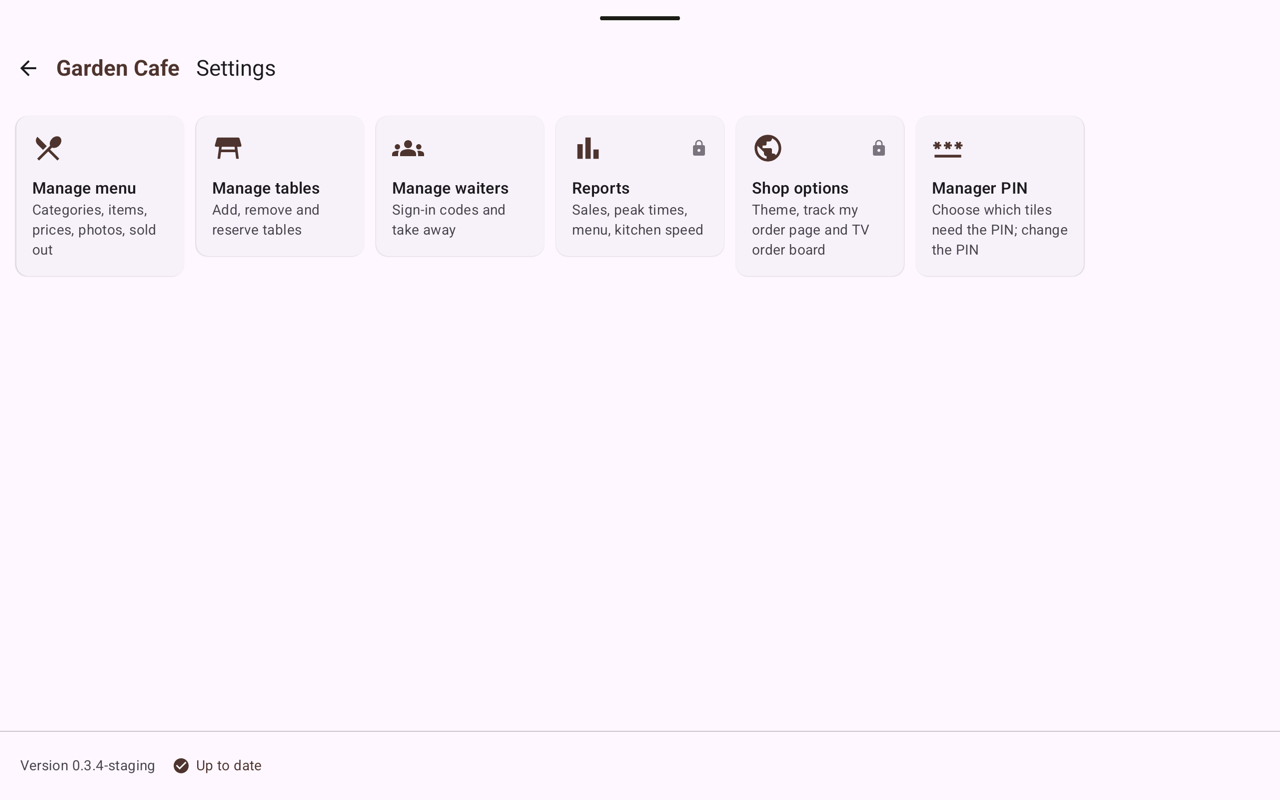
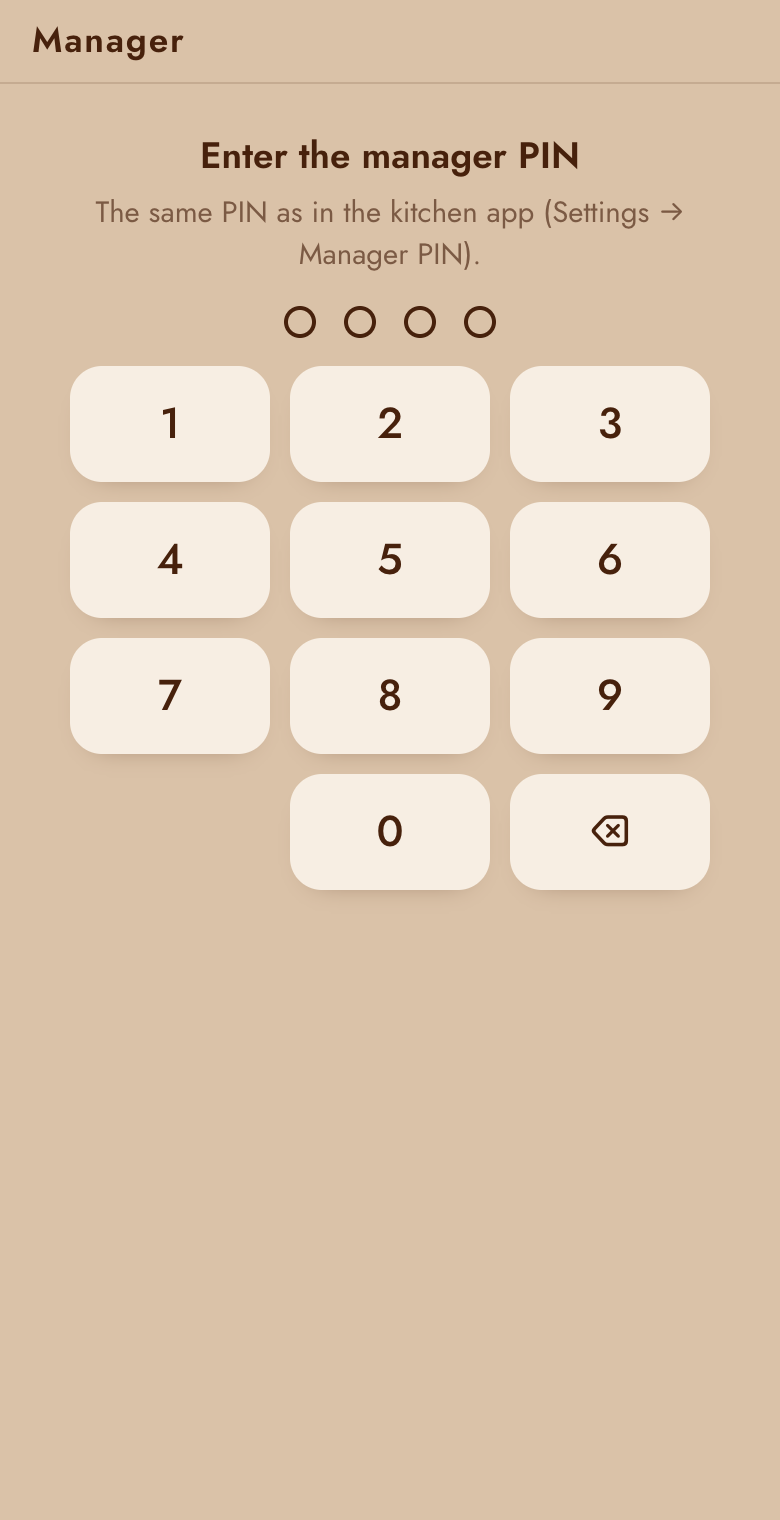
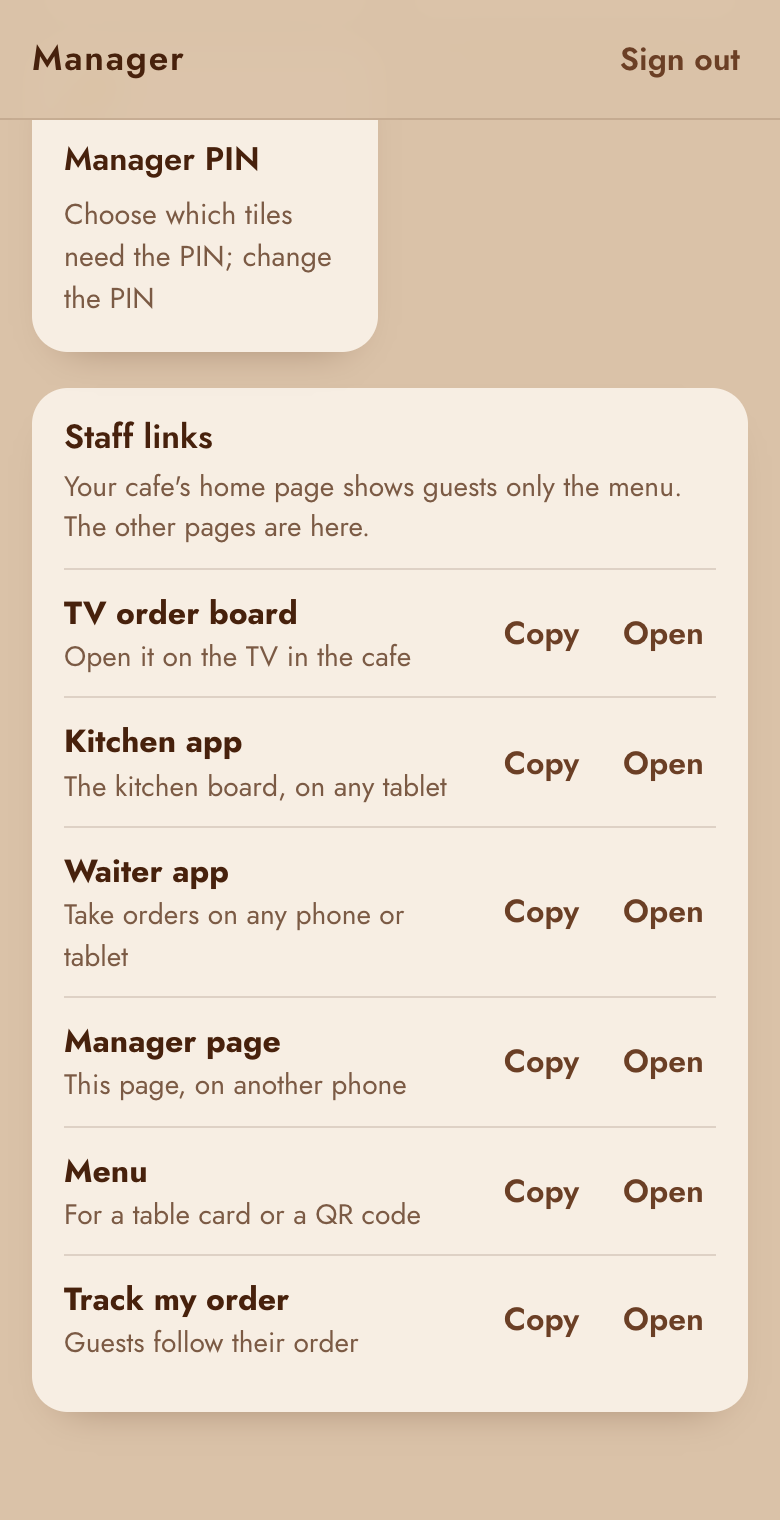
Your menu, tables and waiters, the customer pages and the manager PIN. They're in two places that do the same: Settings in the Android kitchen app, and the manager page on any phone or computer. Changes reach the tablet and the waiters' phones within seconds.
Opening the manager page
- Open
…/your-cafe/manage/(the address is in your welcome letter). - Enter the manager PIN: the same one as in the kitchen app.
- You stay signed in for 8 hours, or until the PIN is changed. Sign out on a shared computer.
Staff links
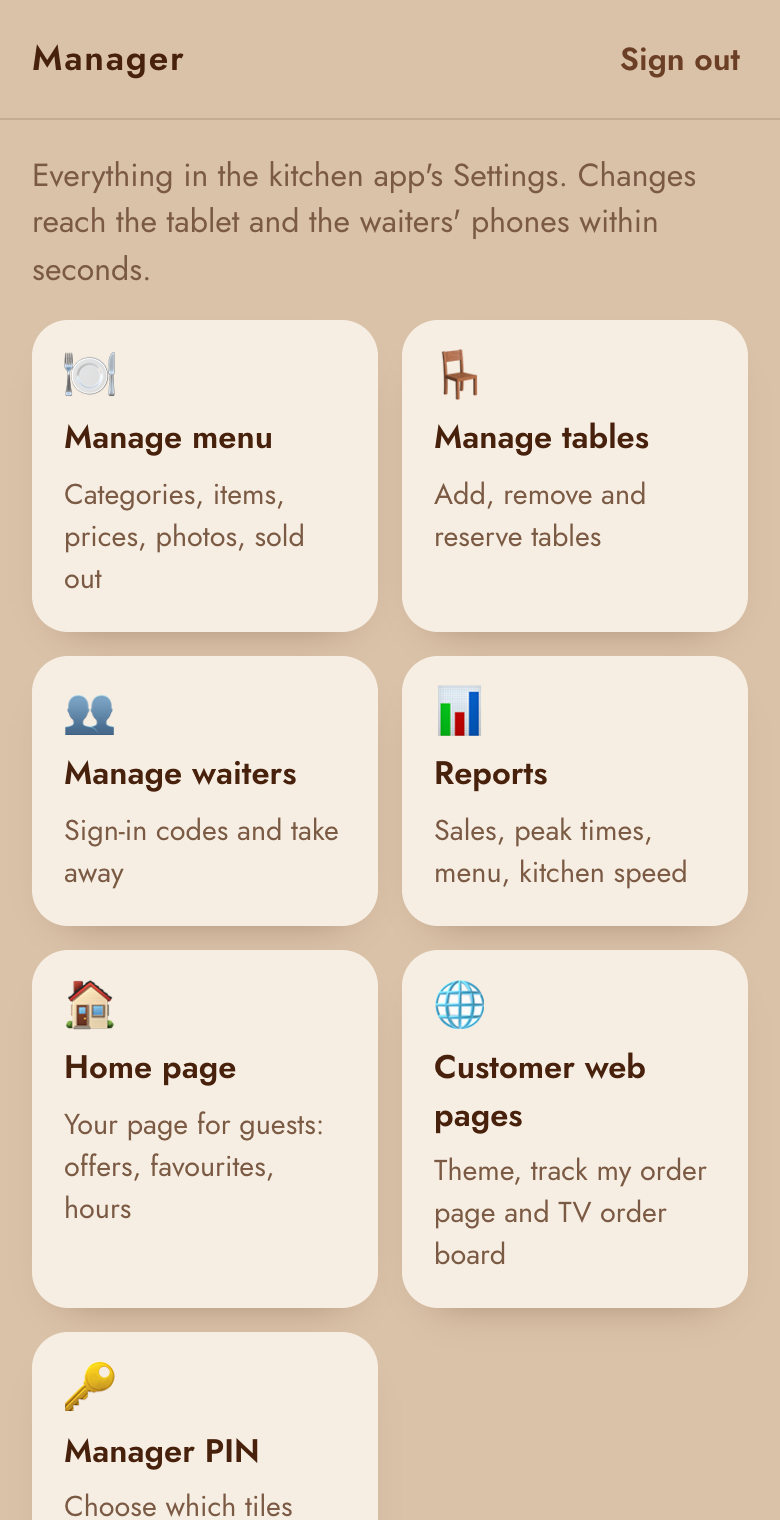
Under the tiles, Staff links lists your cafe's other pages: the TV order board, the kitchen and waiter apps, the manager page, the menu and track my order. Copy puts a link on the clipboard (to send to a waiter, or make a QR code); Open opens it. Your home page doesn't show these to guests.
Manage menu
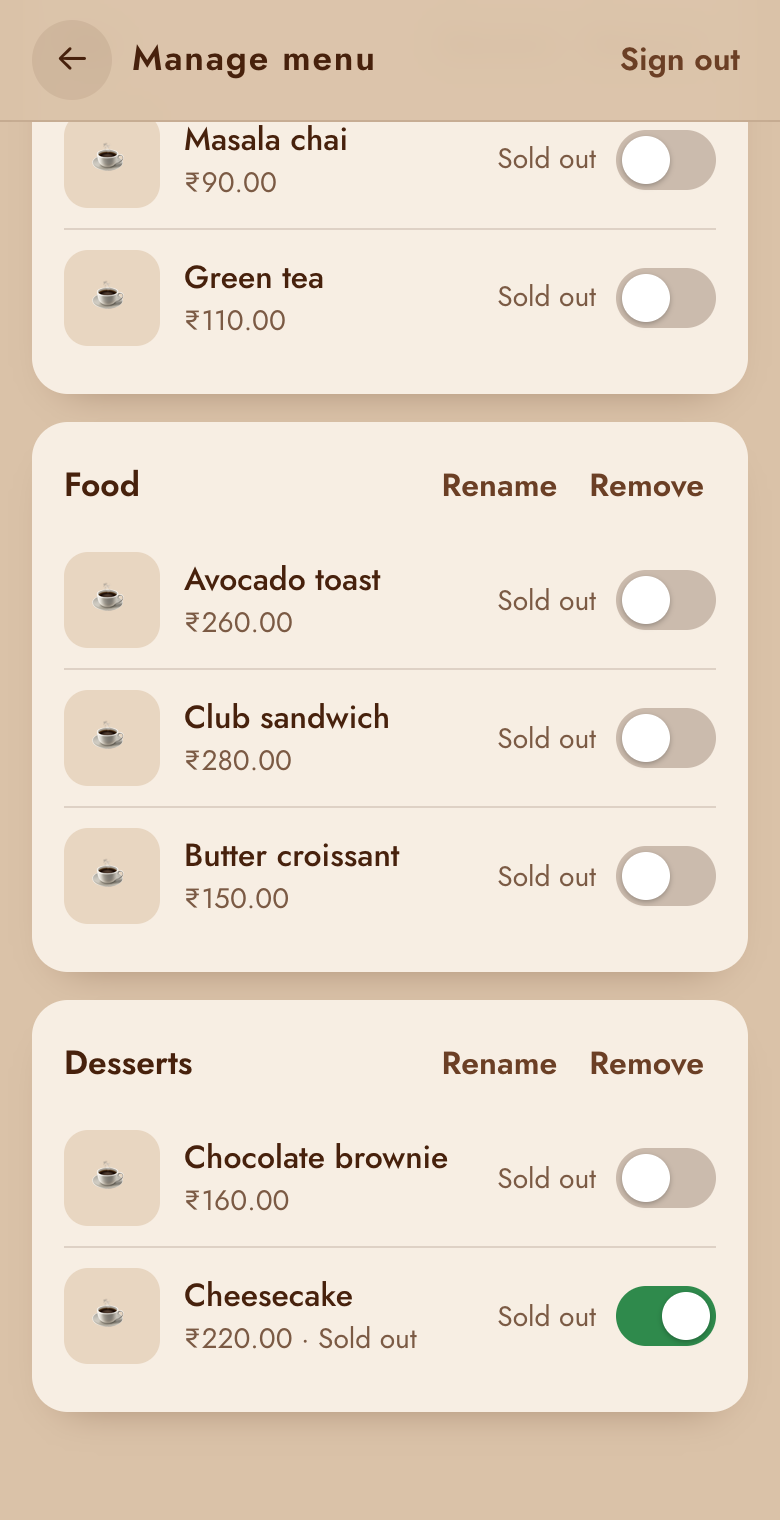
Categories (Coffee, Tea, Food…) and their items, with prices and photos.
- Categories: Add, Rename or Remove. A category can only be removed once it's empty.
- Items: a name, a price (like 120 or 120.50) and a category. Save the item first, then Choose photo.
- Sold out: switch it on when you run out. Waiters can't add it and the menu page shows it as sold out; switch it off when it's back.
- Remove item from the menu takes it off for good; past sales stay in the reports.
Manage tables
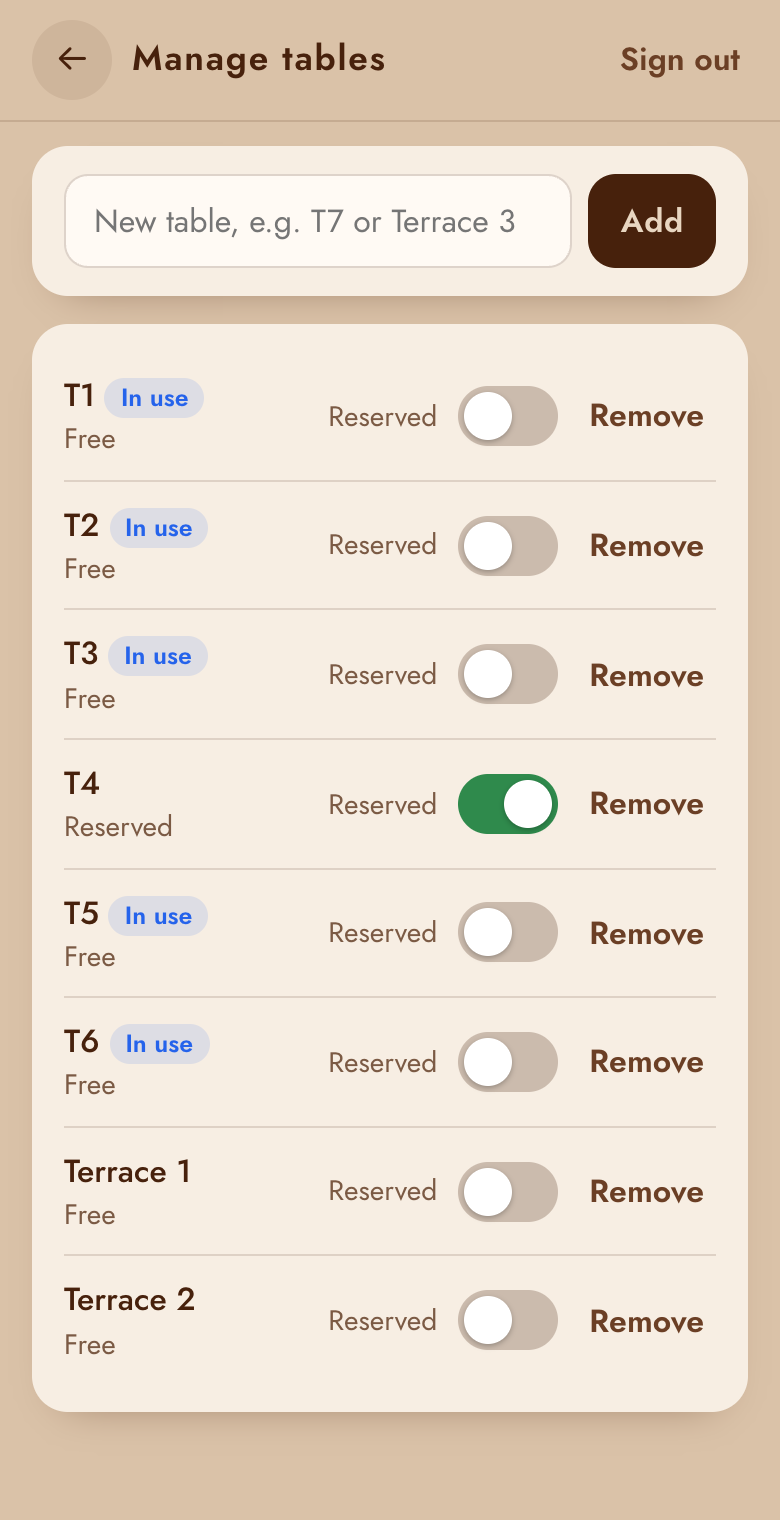
- Add a table with a short name the guests can read on the table, e.g. T7 or Terrace 3. Guests type this name on the track my order page.
- Reserved marks a table as held for a booking. Only a table that isn't in use can be reserved.
- A table with an open bill can't be removed: close the bill first.
Manage waiters
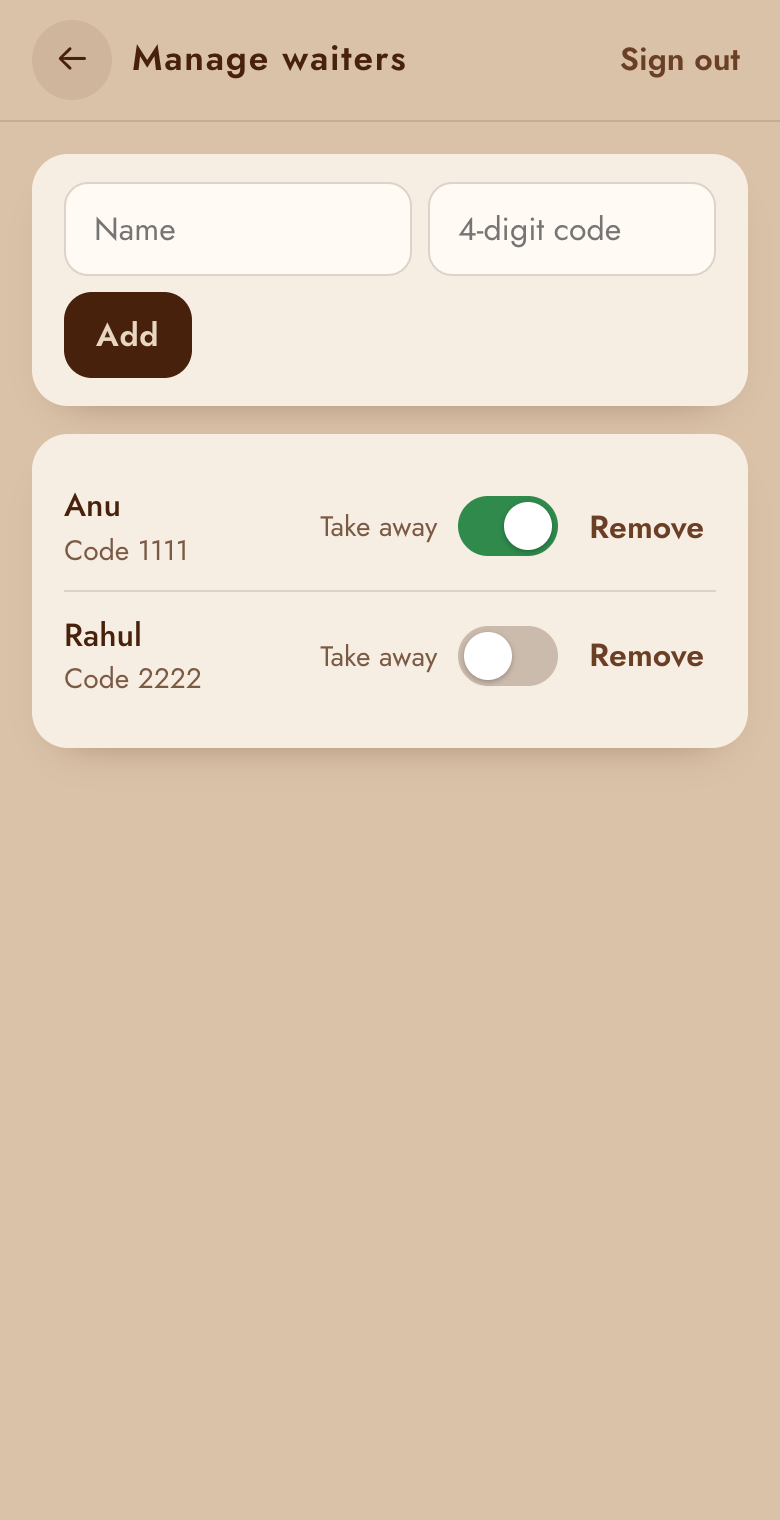
- Each waiter has a name and a 4-digit sign-in code, used to sign in on any of the cafe's phones.
- Take away: switch on for waiters who may take take-away orders.
- Someone leaves? Remove them: their phone is signed out and the code stops working. Their past bills stay in the reports.
- To give someone a new code, remove them and add them again with the new code.
Customer web pages (Shop options)
Called Shop options in the Android kitchen app.
| Option | What it does |
|---|---|
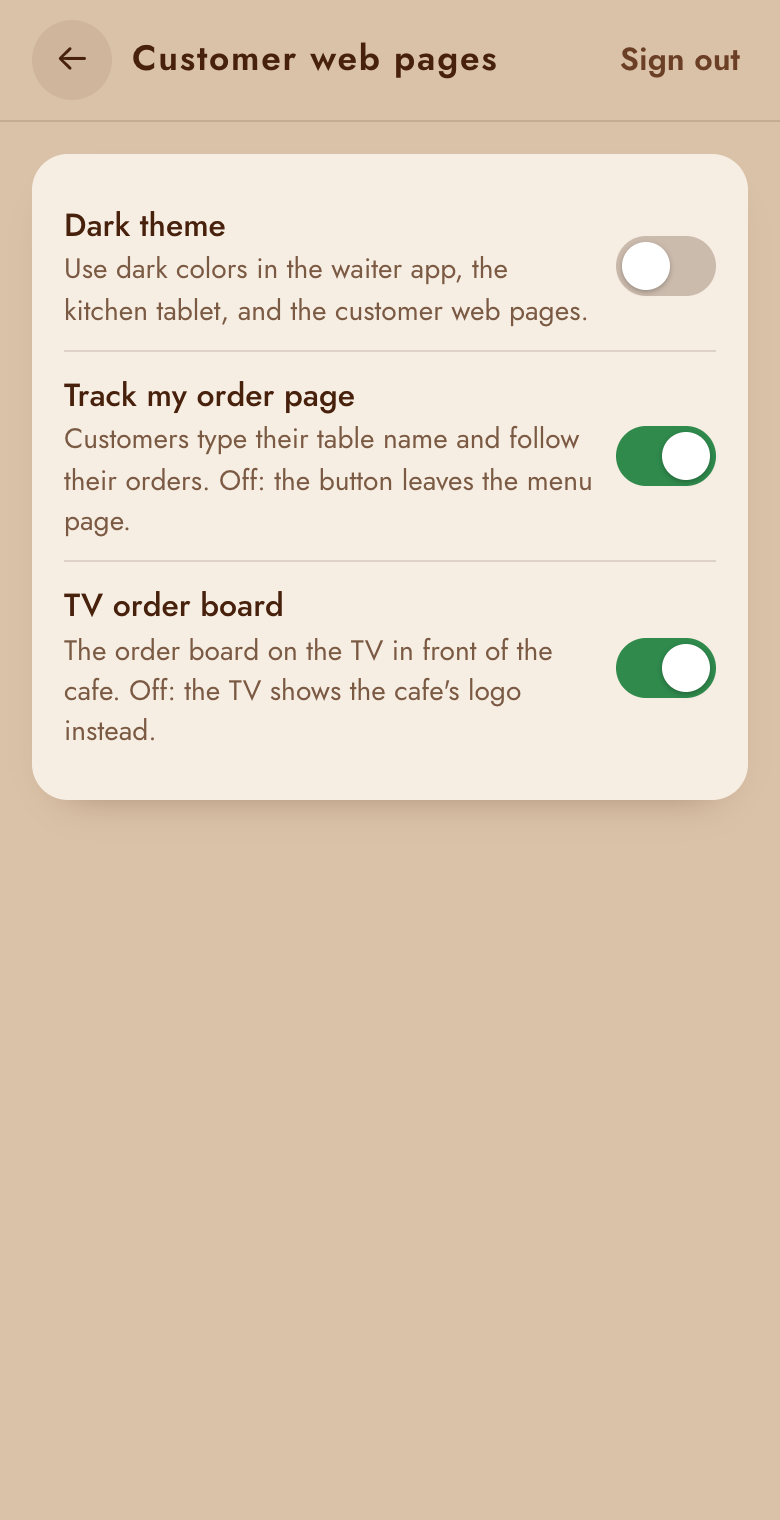
| Dark theme | Dark colours in the waiter app, the kitchen tablet and the customer pages. |
| Track my order page | Guests type their table name and follow their orders. Off: the button leaves the menu page (within a minute). |
| TV order board | The order board on the TV in the cafe. Off: the TV shows your logo instead. |
Home page
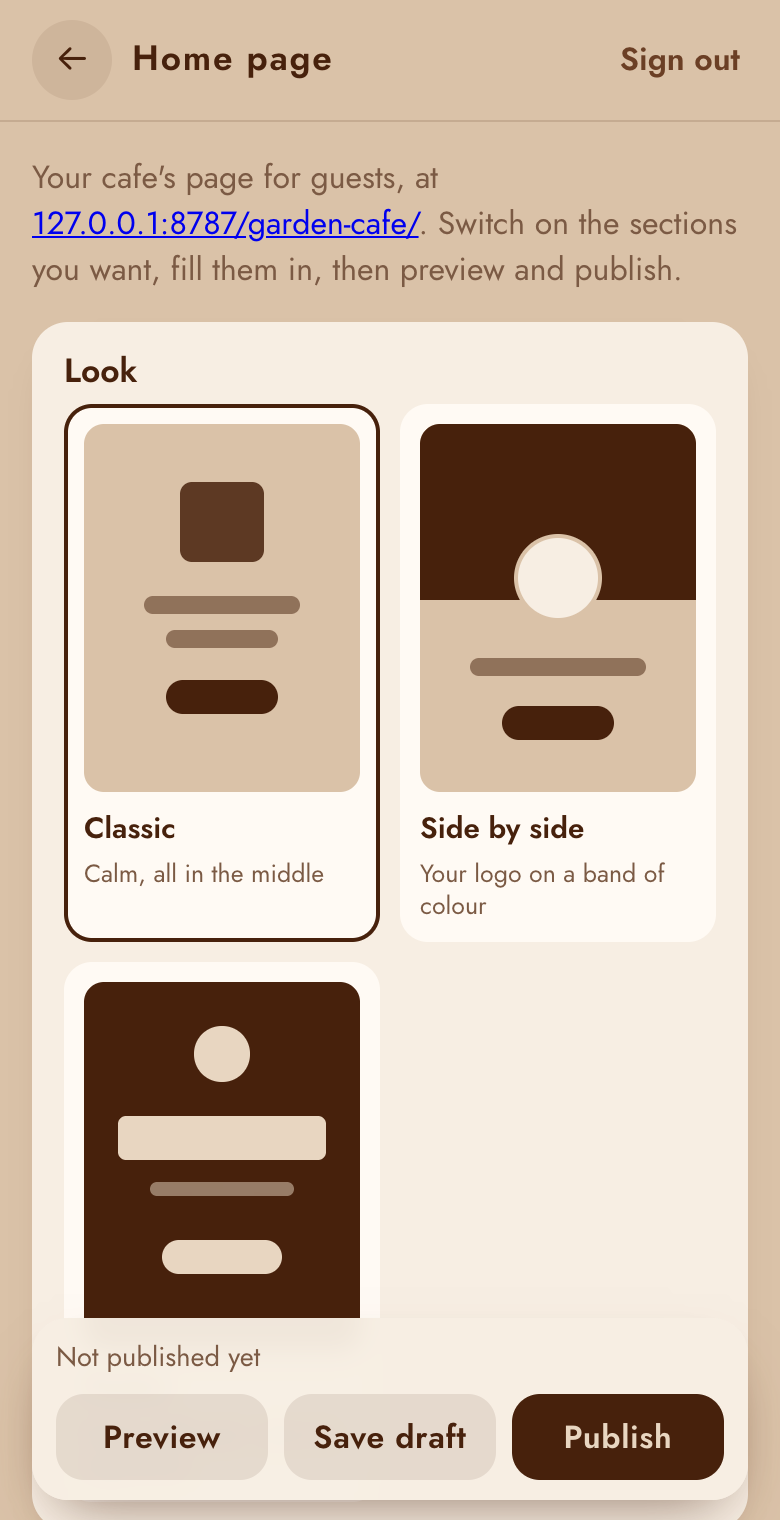
The Home page tile sets up your cafe's welcome page for guests (…/your-cafe/). Only on the
manager page for now, not in the Android kitchen app.
- Look: Classic (calm, all in the middle), Side by side (your logo on a band of your colour) or Poster (dark, with your name in big letters). Tap one and it's saved; guests see it on their next visit.
- Top of the page: a short line over your welcome (instead of "Welcome to …") and up to 3 numbers with a word under each, like "40+ Dishes" or "6 Years". The numbers count up when guests see them. Shown in every look.
- Sections under the See the menu button, each with an on/off switch. Move them up and
down with ▲ ▼:
- Hot offer: a title, a line about it, a price, a badge (like "Today only"), a photo from your menu and an end date. Guests see a countdown, and the offer disappears by itself after the end date.
- Our favourites: up to 6 dishes from your menu. Their photos, prices and "sold out" always come from Manage menu.
- Our story: a few words about your cafe.
- Opening hours: the times for each day (or Closed) and a note. Guests see "Open now" or "Closed now", and today is marked.
- Find us: address, map link, phone, WhatsApp and Instagram, shown as buttons.
- Switch on the sections you want and fill them in.
- Preview opens your home page with your changes, in a new tab, only on this phone.
- Save draft keeps your changes for later; guests still see the published page.
- Publish shows your changes to guests at once. A section that's on but empty (an offer with no title, no dishes picked, no story, nothing to find you by) stops it, with a message saying what to fill in.
Manager PIN
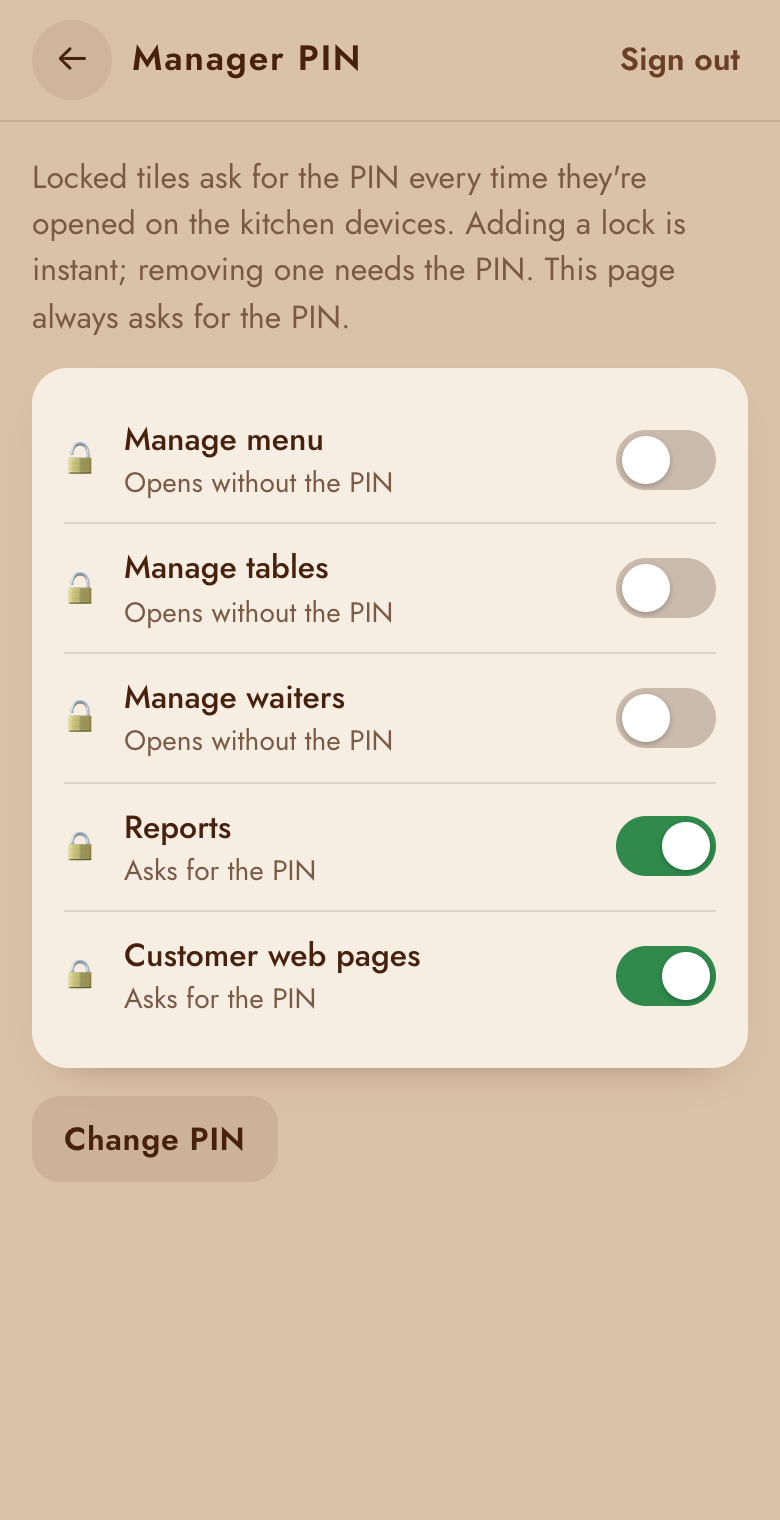
Here you choose which tiles ask for the PIN on the kitchen tablet, and change the PIN itself.
- Out of the box, Reports and Customer web pages ask for the PIN; the rest open straight away so the kitchen can mark items sold out. Removing a lock needs the PIN.
- Change PIN: enter the current PIN, then the new one twice. Connected phones and the tablet stay connected; the manager page asks for the new PIN.
- After 5 wrong tries the PIN is locked for 15 minutes, on every device.
Reports
Sales, busy times, the menu, kitchen speed, tables and waiters: see Reports.