Help centre › Reports
Reports
What sold, when you're busy, how fast the kitchen is and how each waiter is doing. Open Reports on the manager page or in the kitchen app's Settings (it asks for the manager PIN out of the box).
Choosing the period
Pick Today, Yesterday, Last 7 days, This month, Last month, or Pick dates for any from–to range. The tabs below show that period.
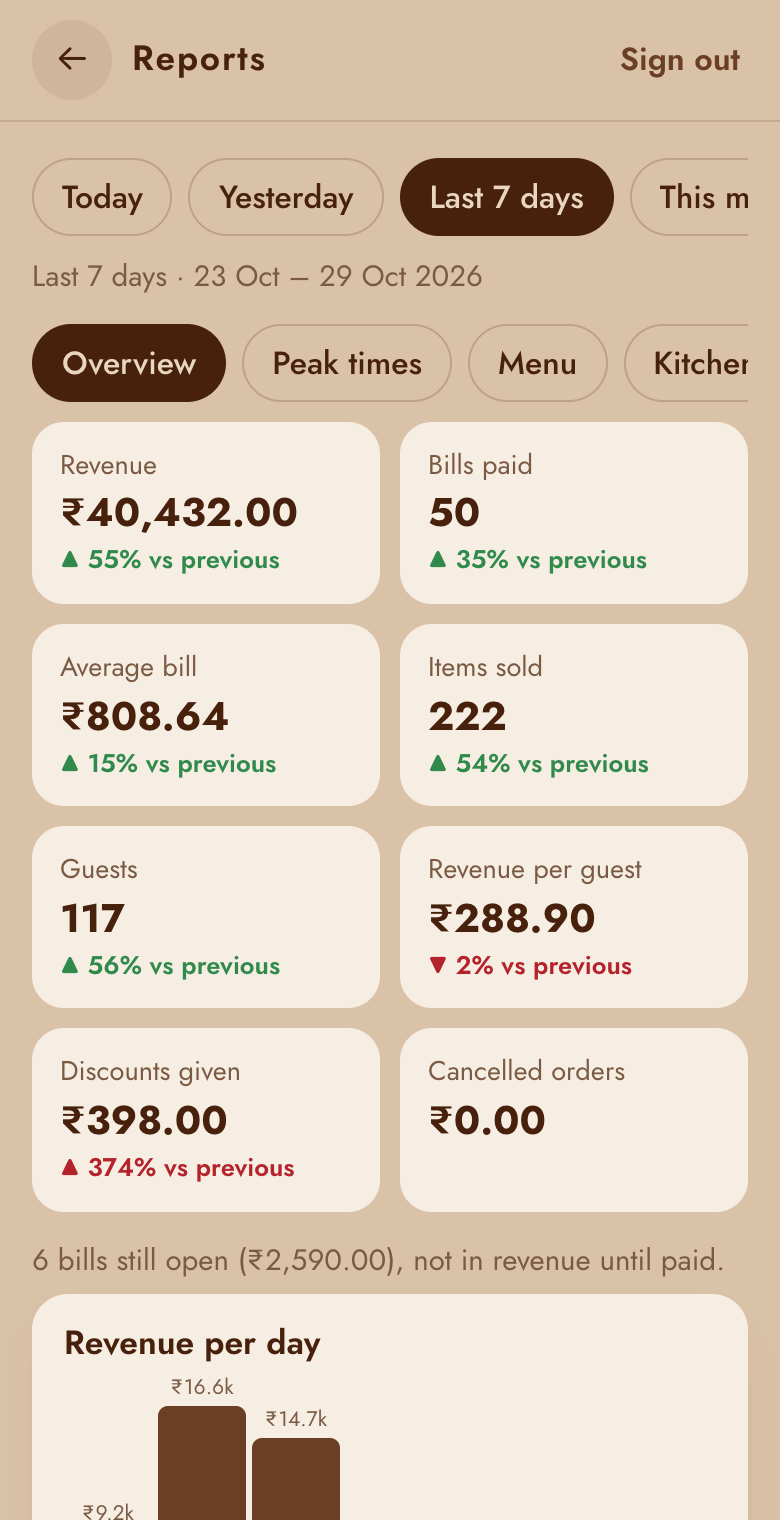
Overview
Revenue, bills paid, average bill, items sold, guests, revenue per guest, discounts given and cancelled orders, then revenue per day and how customers paid (cash, UPI, card).
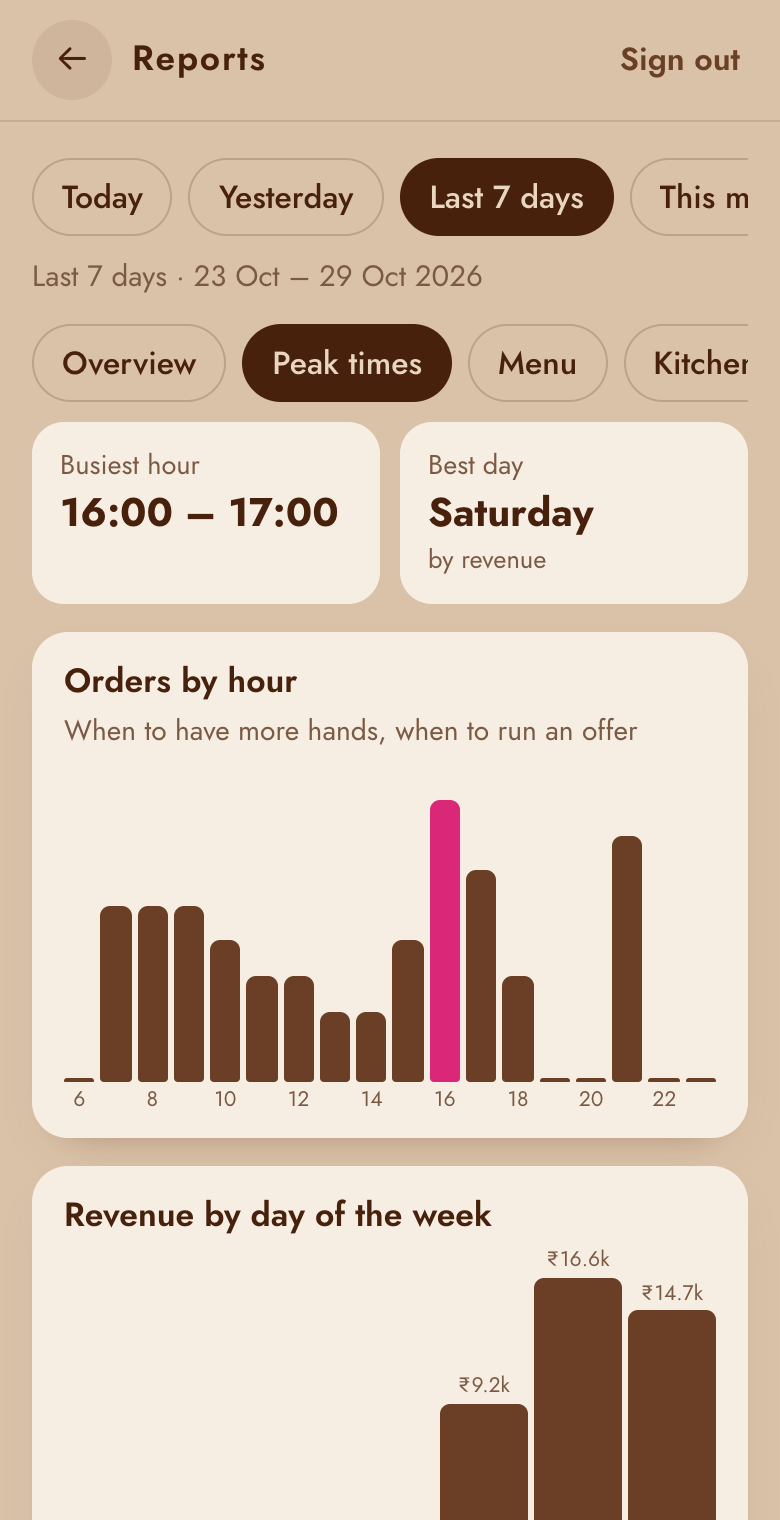
Peak times
Orders by hour and by day of the week, the busiest hour and the best day: when to have more hands, and when to run an offer.
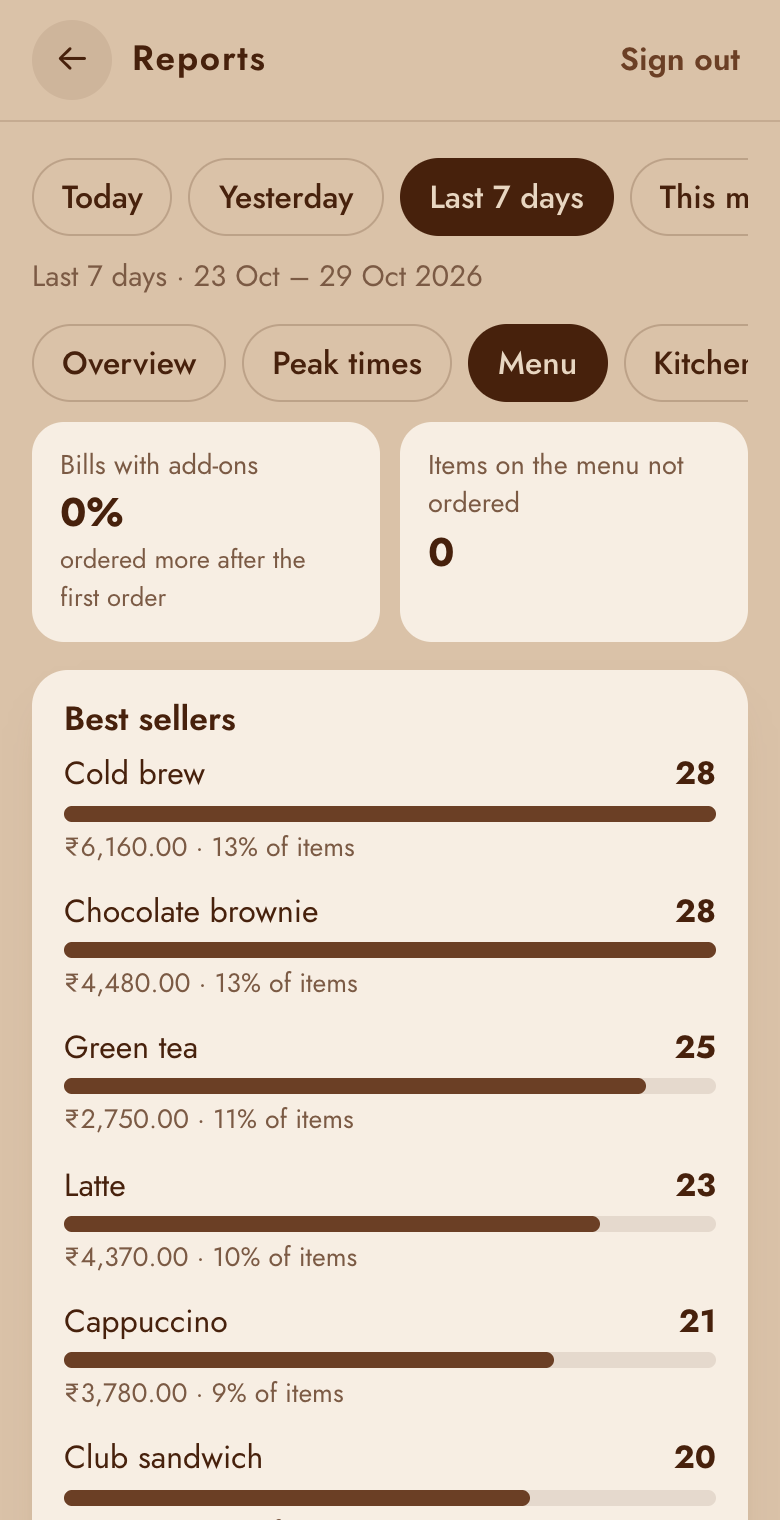
Menu
Best sellers, what sold least, categories, items on the menu nobody ordered, and how often an item ran out: candidates to change, promote or drop.
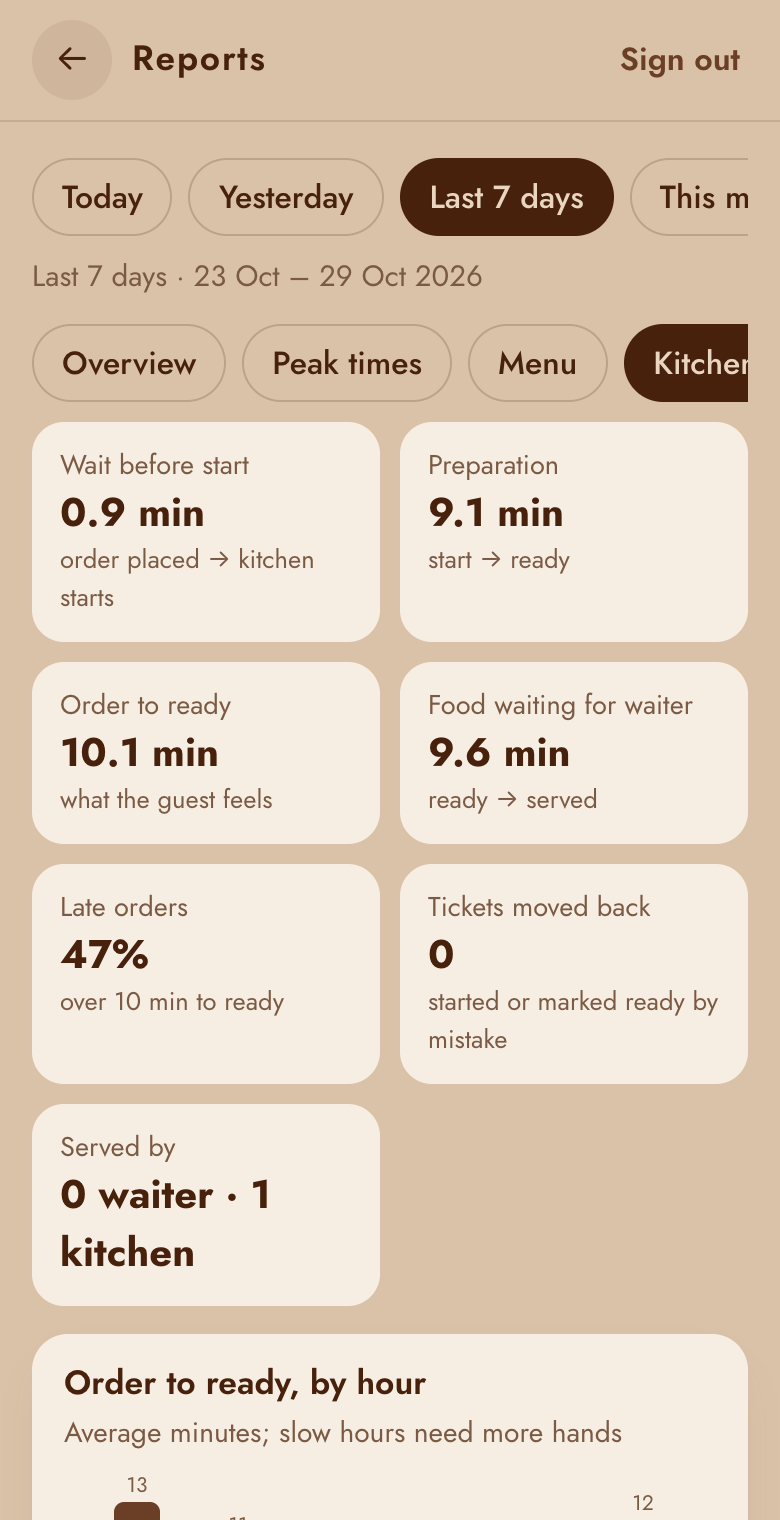
Kitchen
Average minutes from order to ready (by hour, so you can see slow hours), the wait before the kitchen starts, the slowest items, late orders, food waiting for a waiter and tickets moved back.
Tables
Per table: visits (bills paid), revenue, average bill and how long guests stay (bill opened → closed); dine in versus take away; reservations.
Waiters
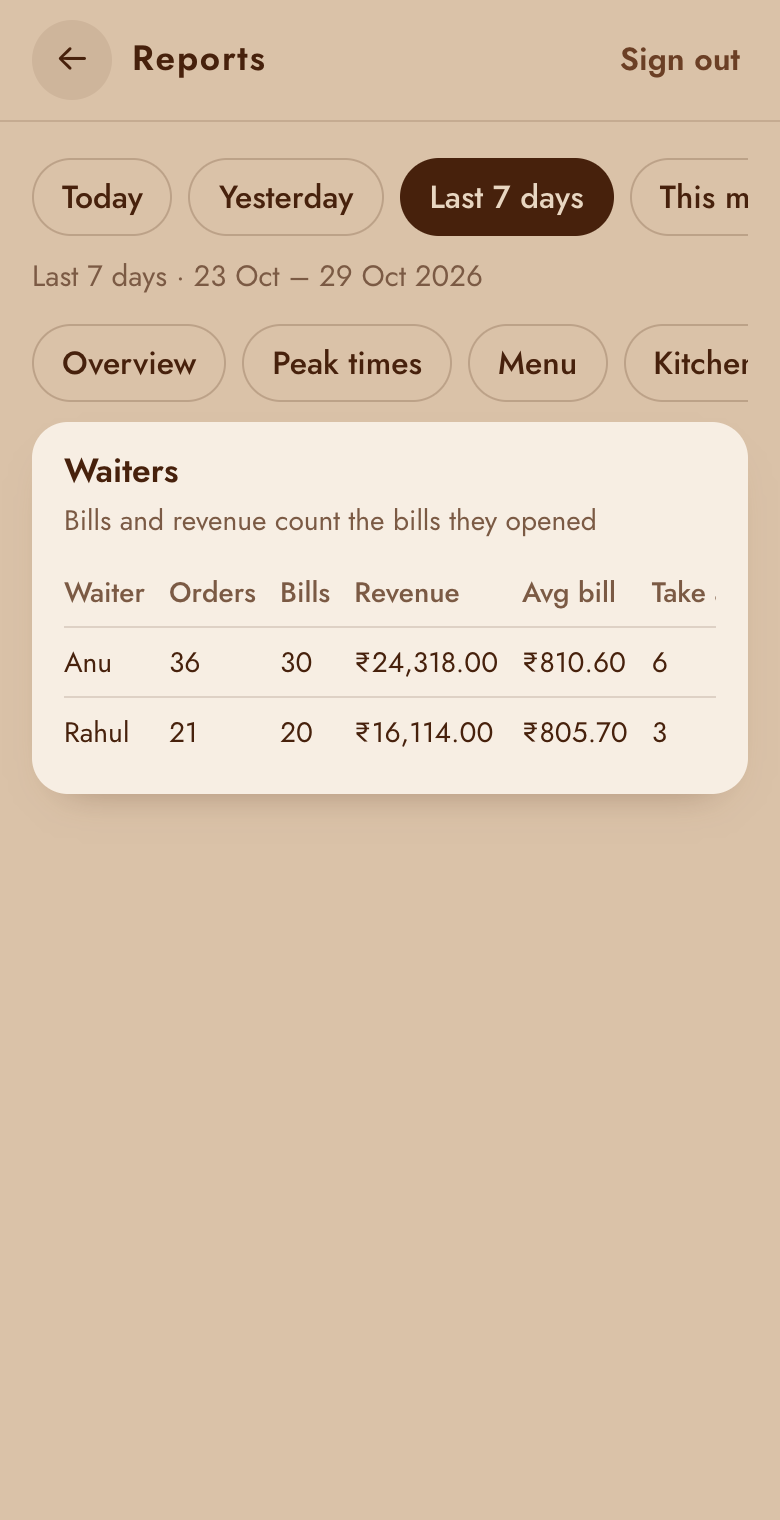
Per waiter: orders, bills, revenue, average bill and take-away orders. Bills and revenue count for the waiter who opened the bill.
Timeline
Everything that happened, in order: bills opened and paid, orders placed, started, ready, served or cancelled (with the reason), discounts, items sold out and back, tables and waiters added. Useful to answer "what happened with T4 at 8?".