Help centre › Getting started
Getting started
From the welcome letter to your first order: what the cafe code and manager PIN are for, and how to connect the waiters' phones and the kitchen tablet.
Your welcome letter
When your cafe is set up, the Tablepour team emails you a welcome letter (a PDF). It holds two things your team needs:
| What | What it's for |
|---|---|
| Cafe code | Your cafe's short name, e.g. garden-cafe. It's in all your page
addresses (…/garden-cafe/menu/) and the Android apps ask for it once when they connect. |
| Manager PIN | Four digits. It connects a new phone or tablet, opens the manager page and unlocks the locked settings. Only the manager should know it. |
Three steps
- Install the apps. The waiter app on each staff phone, the kitchen app on the kitchen tablet. Or use the web versions in a browser: nothing to install (see Devices and updates).
- Connect each device. Open the app and enter the cafe code and manager PIN. This happens once per device; after that it stays connected.
- Add your menu, tables and waiters. On your manager page or in the kitchen app under Settings (Manager settings). Changes reach every phone within seconds.
Connect a waiter's phone
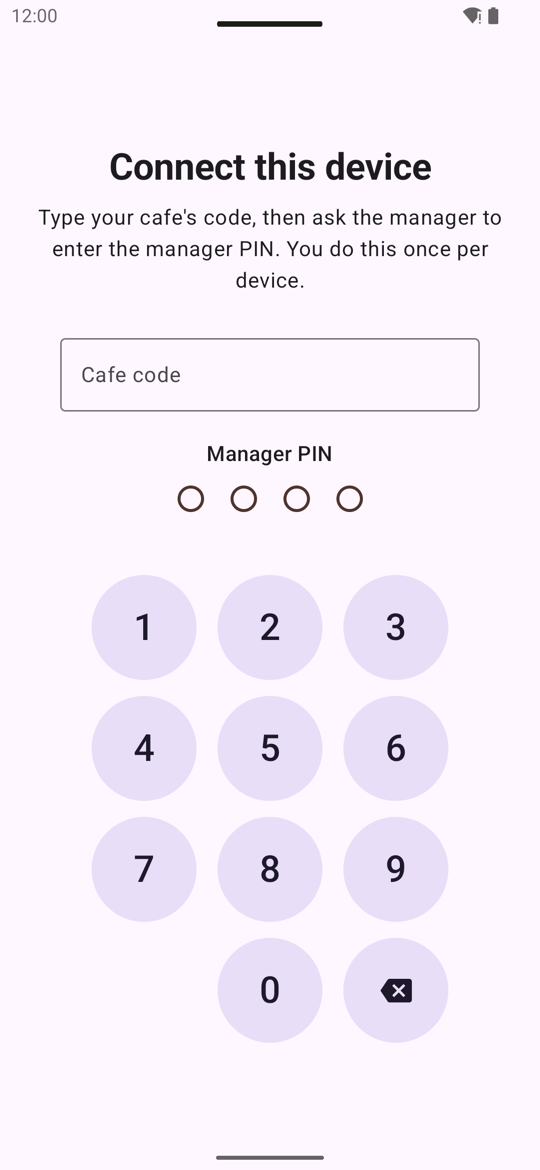
- Open the waiter app (or
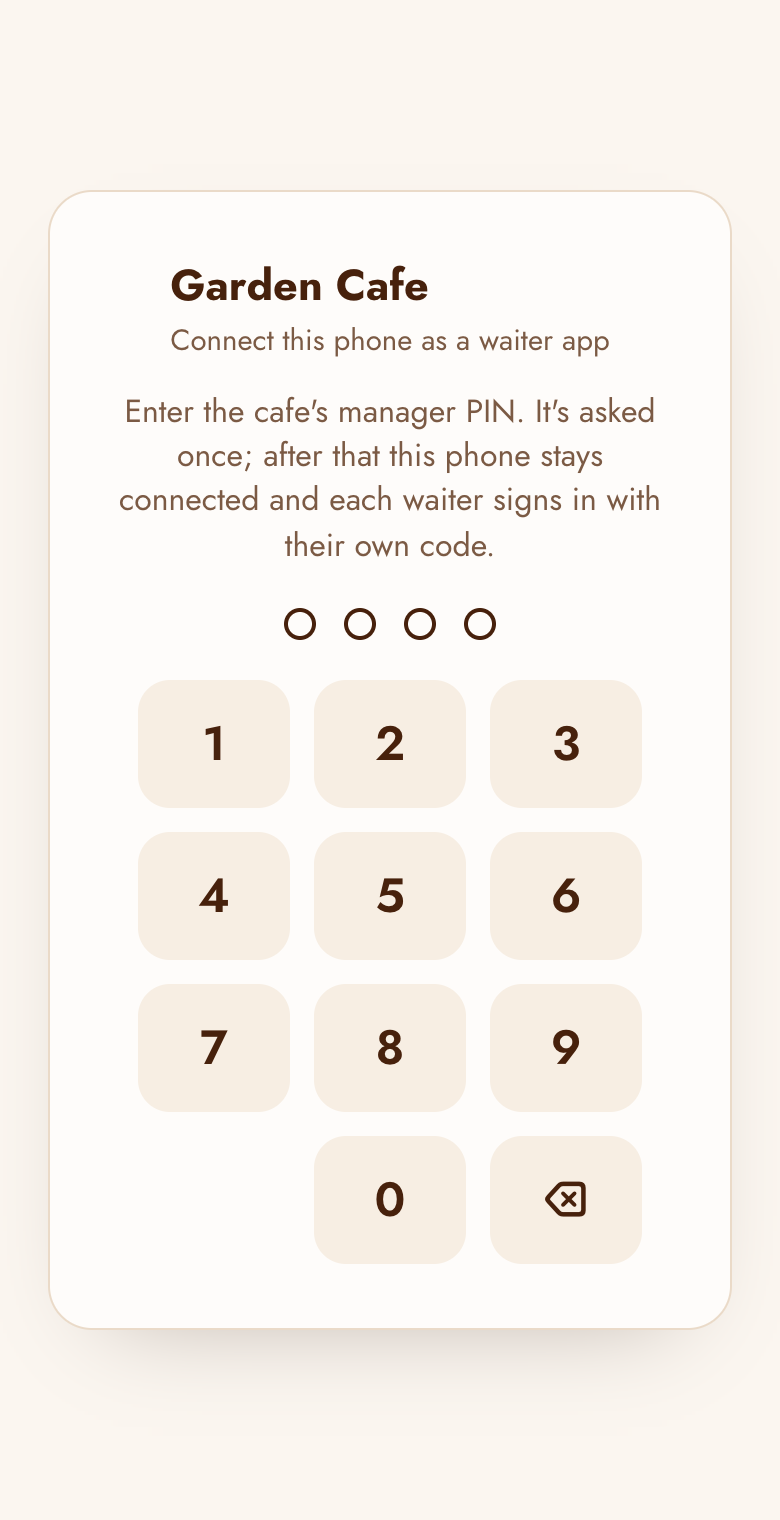
…/your-cafe/waiter/in the phone's browser). - In the Android app, type your cafe code; then the manager enters the manager PIN. (The web app already knows the cafe from its address, so it asks only for the PIN.) The phone is now the cafe's: it remembers it.
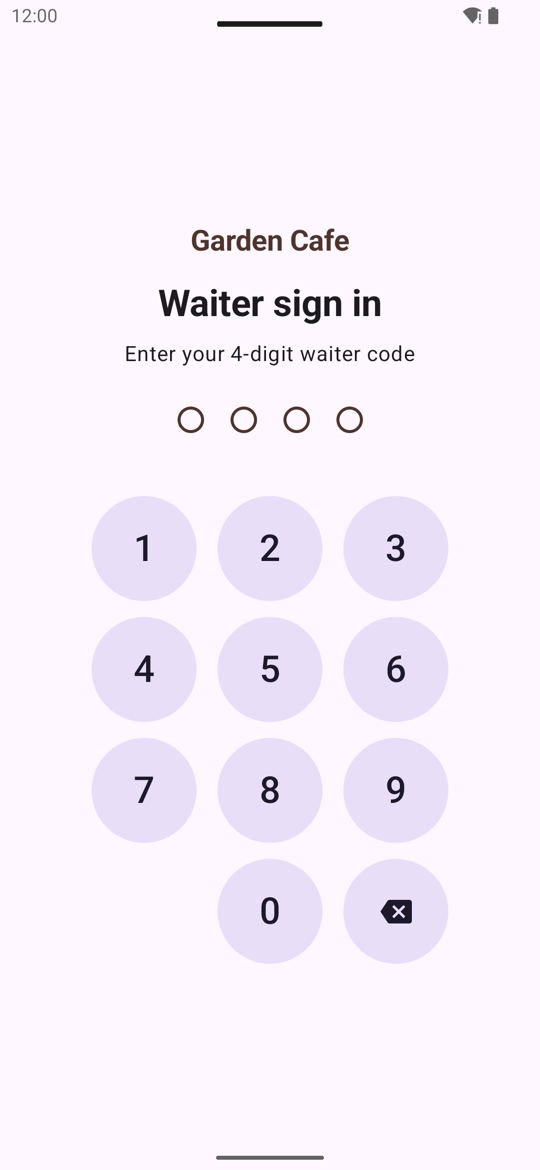
- Each waiter signs in with their own 4-digit waiter code. To hand the phone to someone else, use Switch waiter.
Connect the kitchen tablet
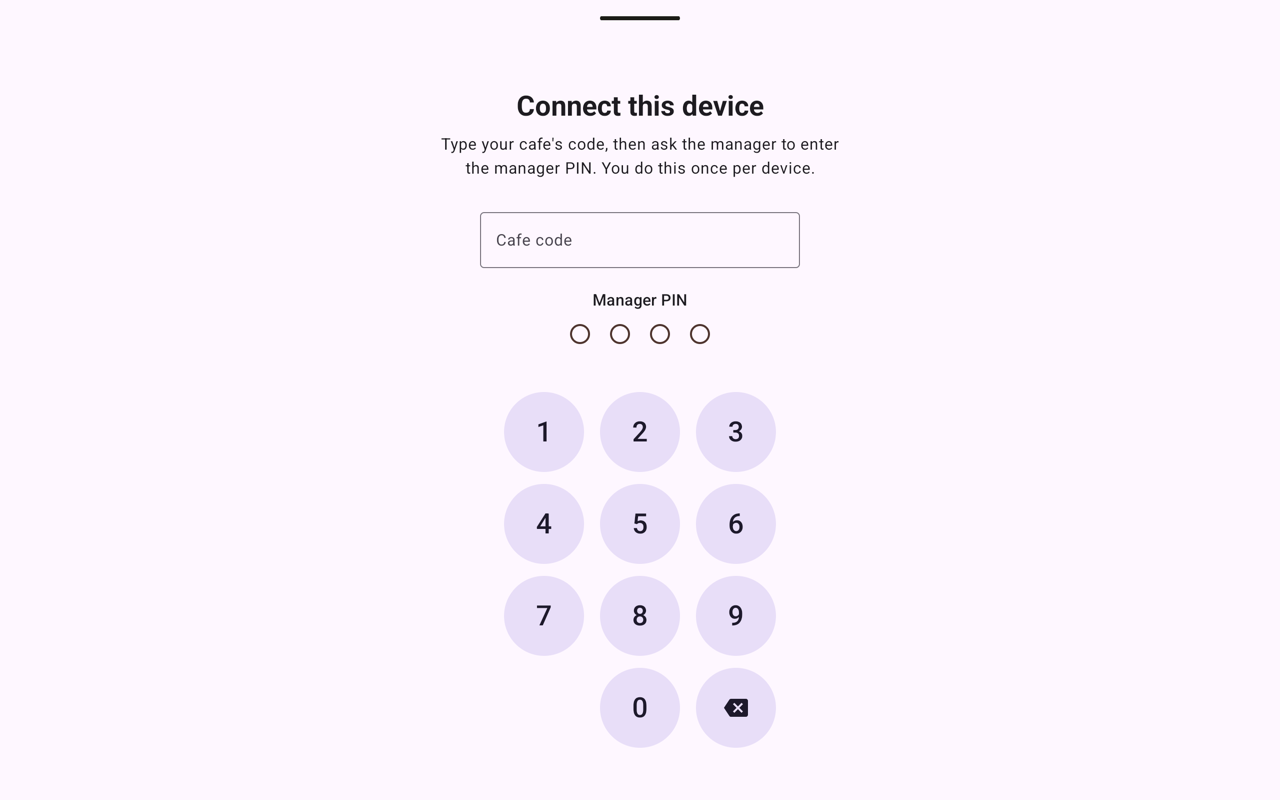
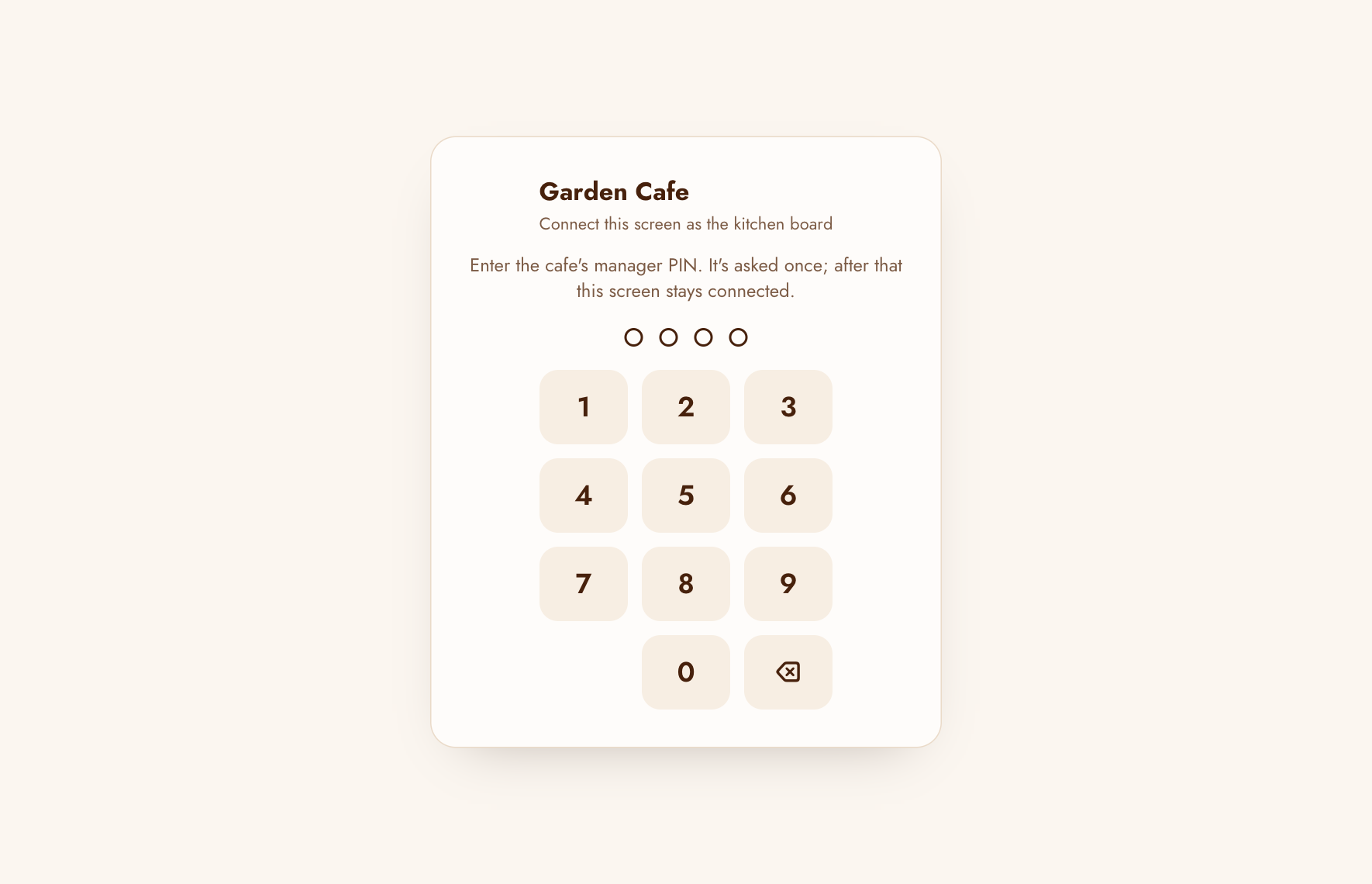
Open the kitchen app (or …/your-cafe/kitchen/ in the tablet's browser). In the Android app, type the
cafe code and the manager PIN; the web board asks only for the PIN.
On the web board, then tap Start the kitchen board: that lets the tablet play the new-order sound.
Your cafe's pages
Every cafe gets its own pages, with your name, logo and colours. Your home page …/your-cafe/ welcomes guests and leads to the menu; the manager page lists the rest under Staff links.
| Page | Address | For |
|---|---|---|
| Menu | /your-cafe/menu/ | Guests: your menu with prices and photos. |
| Track my order | /your-cafe/track/ | Guests: their order's progress, by table. |
| TV order board | /your-cafe/board/ | A TV in the cafe: orders received, preparing, ready. |
| Manager page | /your-cafe/manage/ | The manager: menu, tables, waiters, reports. |
| Kitchen / Waiter app | /your-cafe/kitchen/, /waiter/ | Staff, in a browser. |
More in Guest pages.
Your first order
- A waiter taps a table, adds items and taps Send to the kitchen.
- The order appears on the kitchen board under New with a sound. The kitchen taps Start, then Ready.
- The waiter's phone shows the table as Ready; they bring it and tap Served.
- When the guests leave, the waiter taps Close bill and picks how they paid.